Canva makes design easy, which is a great thing. But when a Canva project is headed to a professional printer, a few extra steps are essential to ensure the final printed piece looks polished, accurate, and production-ready.
Professional printers rely on bleeds, crop marks, and high-resolution files to deliver clean trims and consistent color. Before exporting your Canva design, follow these simple tips to avoid common print issues.
Key Steps to Prepare Canva Files for Print
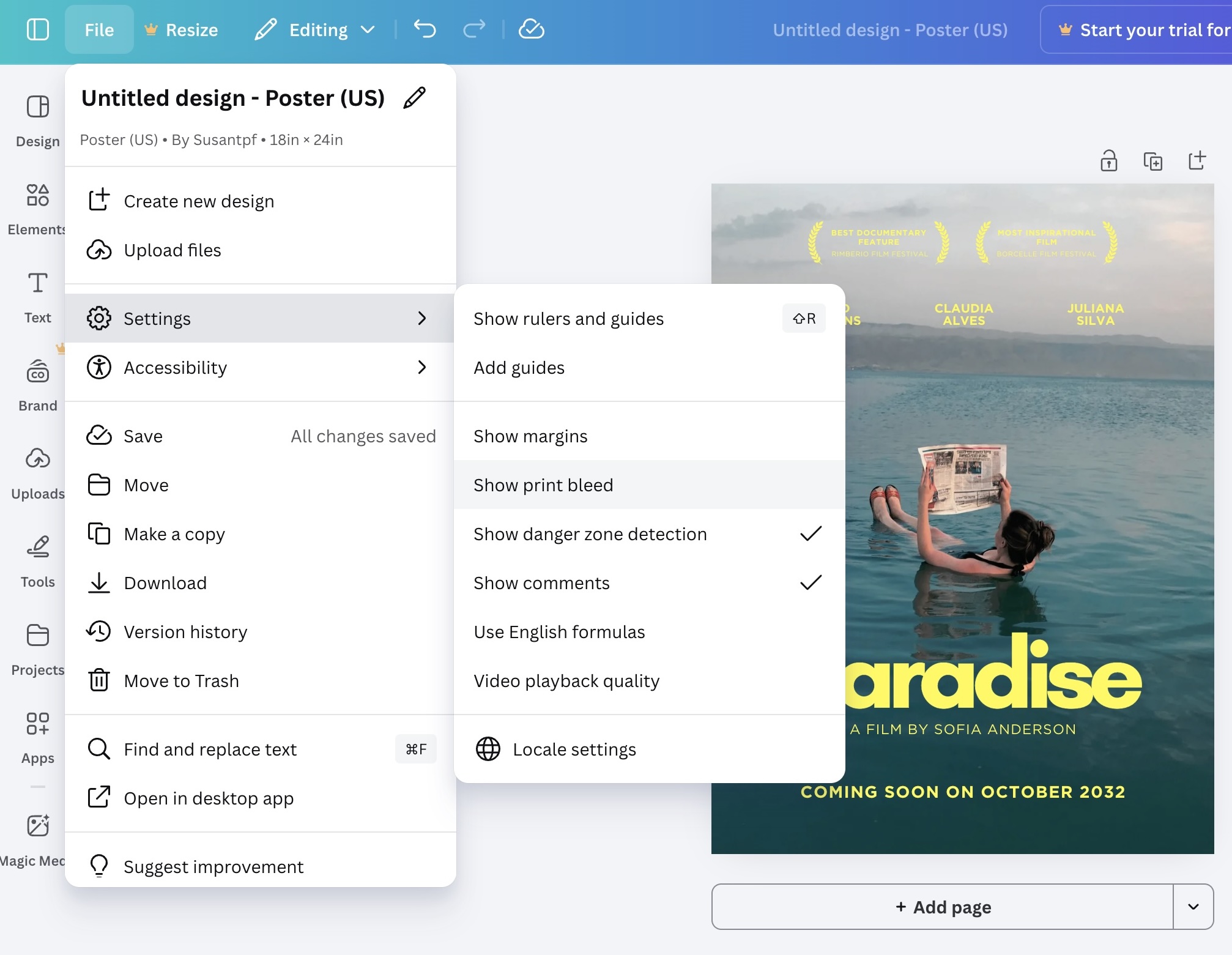 |
1. Set Up Bleed & Margins
2. Use High-Resolution Elements
|
|
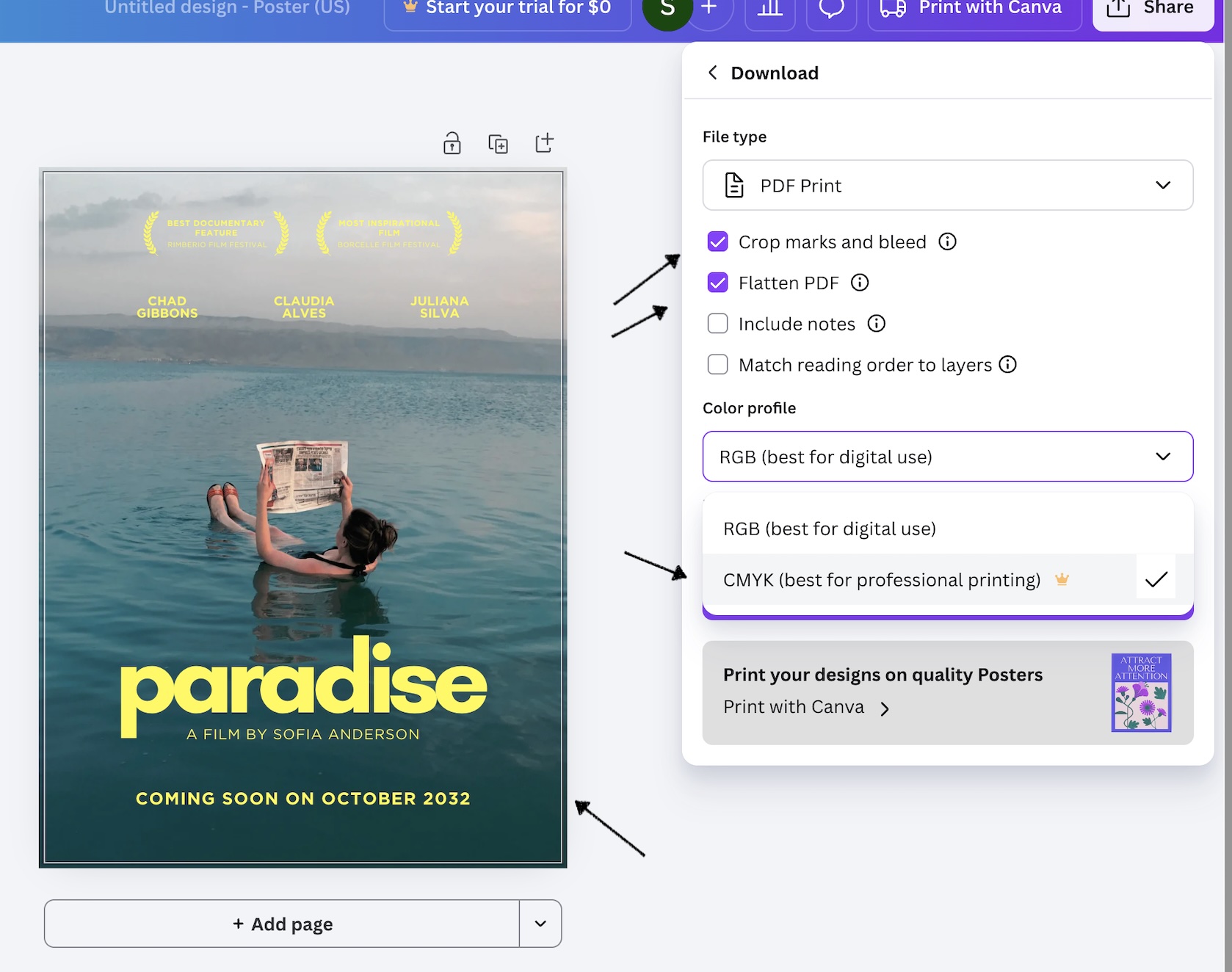
3. Download with the Right Settings
When exporting your file:
|
 |
Pro Tips for Better Print Results
-
CMYK vs. RGB: Canva designs start in RGB (screen colors). Selecting CMYK during export helps ensure colors translate more accurately to print.
-
Proof Before Sending: Always review your PDF at 100% scale to check text size, image clarity, and spacing.
-
Text Safety: Keep important text and logos comfortably inside the inner margin so nothing gets trimmed off.
Final Thought
Canva is a powerful design tool, but printing requires a production-ready file. Taking a few extra minutes to export correctly can mean the difference between a good print and a great one. When in doubt, The Printing Factory is always happy to review your file before it goes to press.
Great design deserves great printing.


